Show it once. Hand over the whole story.
A walkthrough records your screen, or one window, while you talk it through. You get a screenshot at every step, what you said around it, a line for every click and page, and private details blurred. Share it as a link, or hand the folder to an agent.
curl -fsSL https://capture.startwellventures.com/install.sh | bash
It downloads the latest version, checks it, and puts Startwell Capture in Applications. Before macOS 26 it also fetches the speech model. Run it again any time to update. Read the script first, or download the .dmg.
A walkthrough, replayed
Demo: card declined at checkout
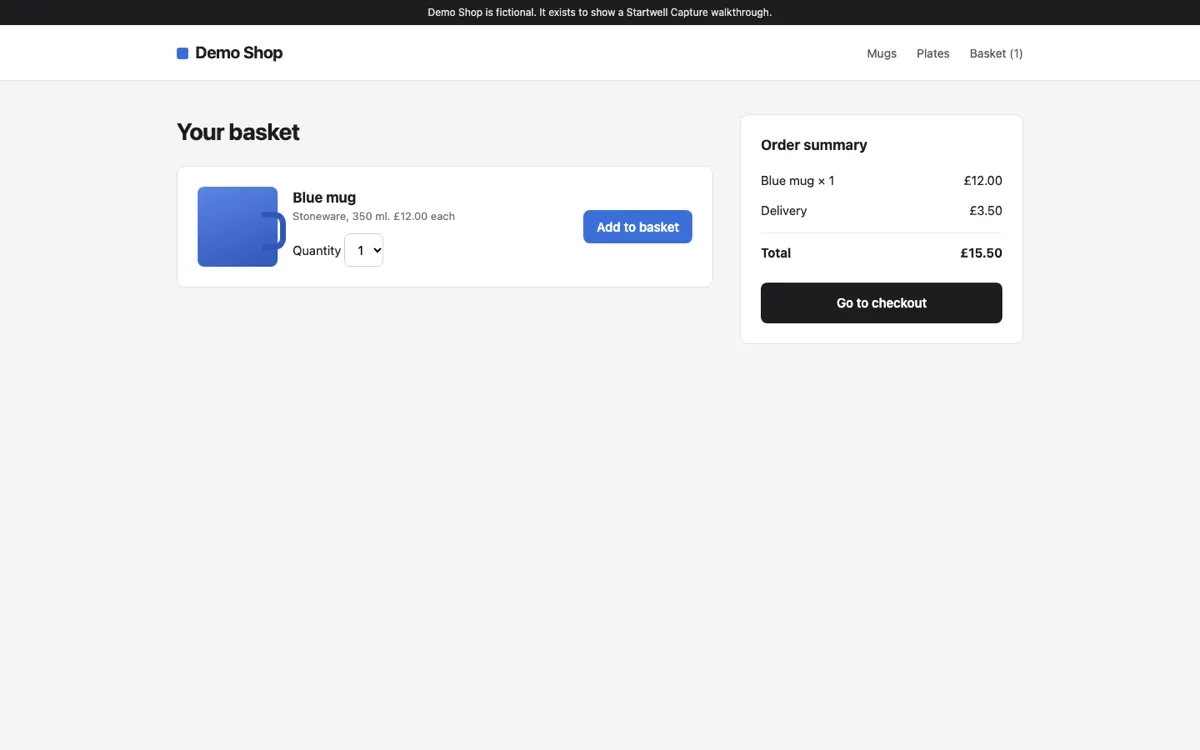
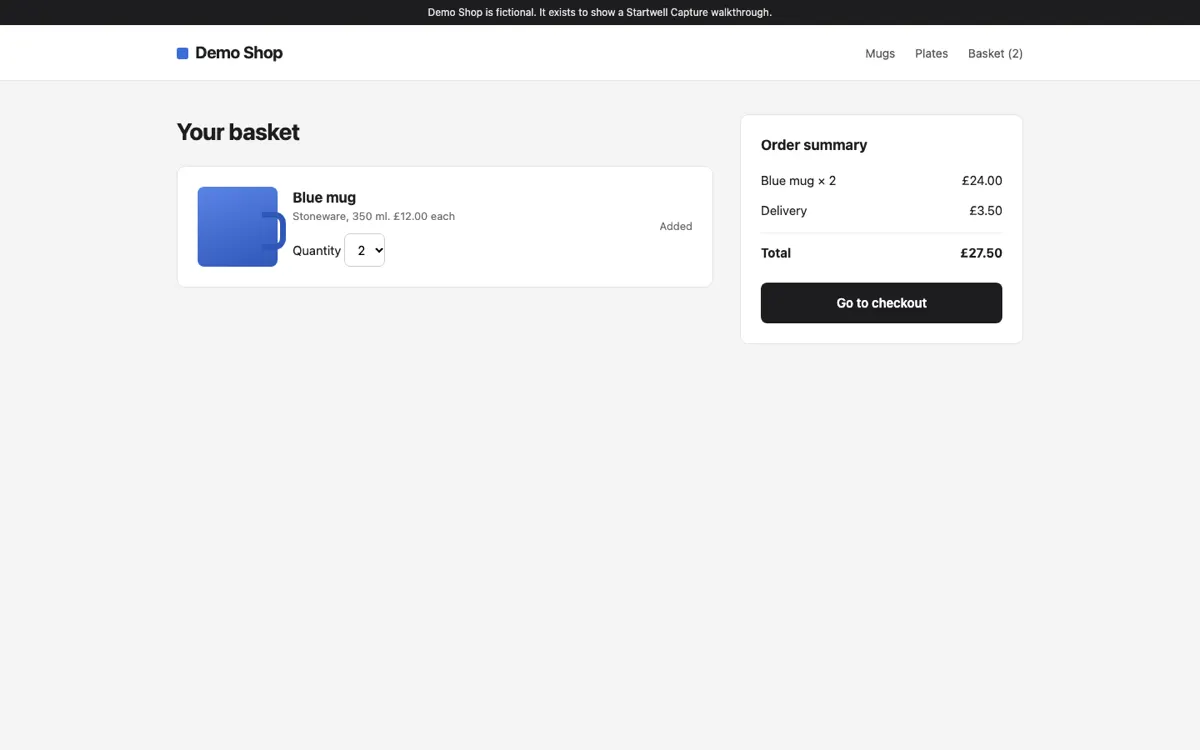
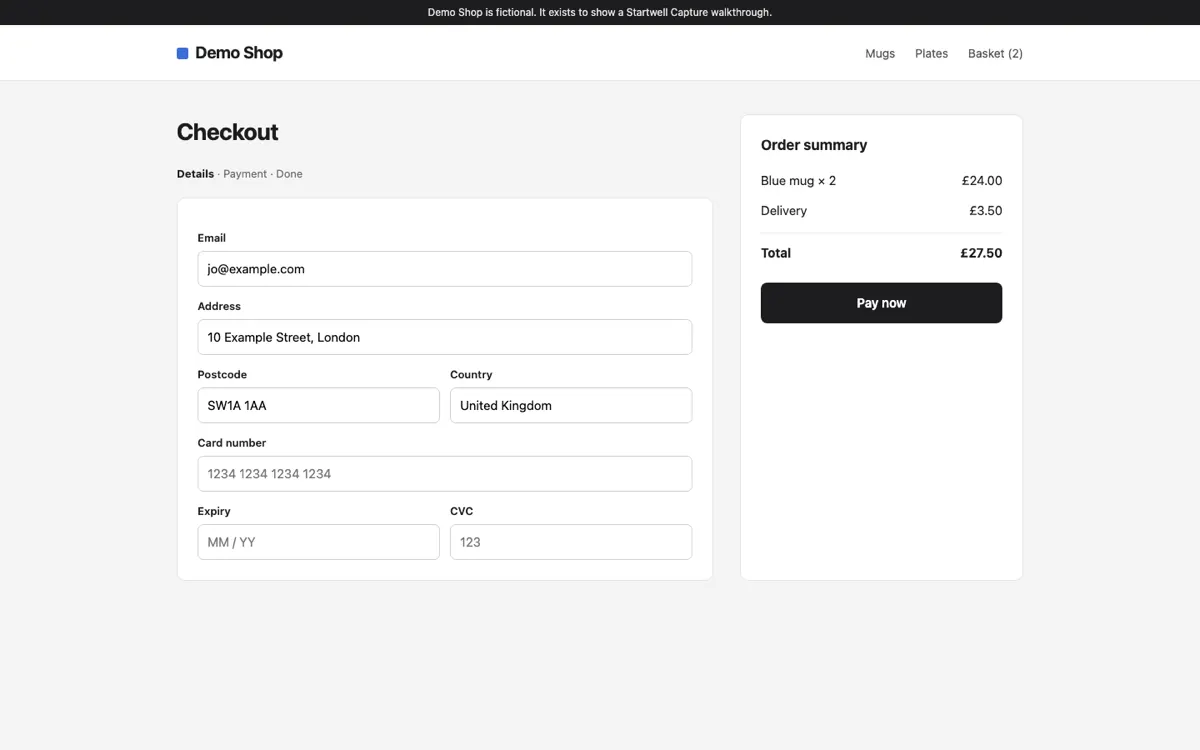
Step 1 · 00:02 demoshop.example/basket · recording started
- Chapter · Your basket — Demo Shop
- 00:00 · Opened Google Chrome — "Your basket — Demo Shop" (demoshop.example/basket)
- Jo · 00:01Okay, this is Demo Shop. I'm on the basket page with one blue mug.
- 00:02Step 1screenshot · recording started
- 00:09 · Clicked menu "Quantity" in "Blue mug"
- Jo · 00:09I'll make it two.
- 00:11Step 2screenshot · click (after it settled)
- Jo · 00:15Then on to checkout.
- 00:16 · Clicked link "Go to checkout"
- 00:17 · Navigated to demoshop.example/checkout — "Checkout — Demo Shop"
- Chapter · Checkout — Demo Shop
- 00:18Step 3screenshot · page changed (after it settled)
- Jo · 00:20My email and address are already filled in from last time.
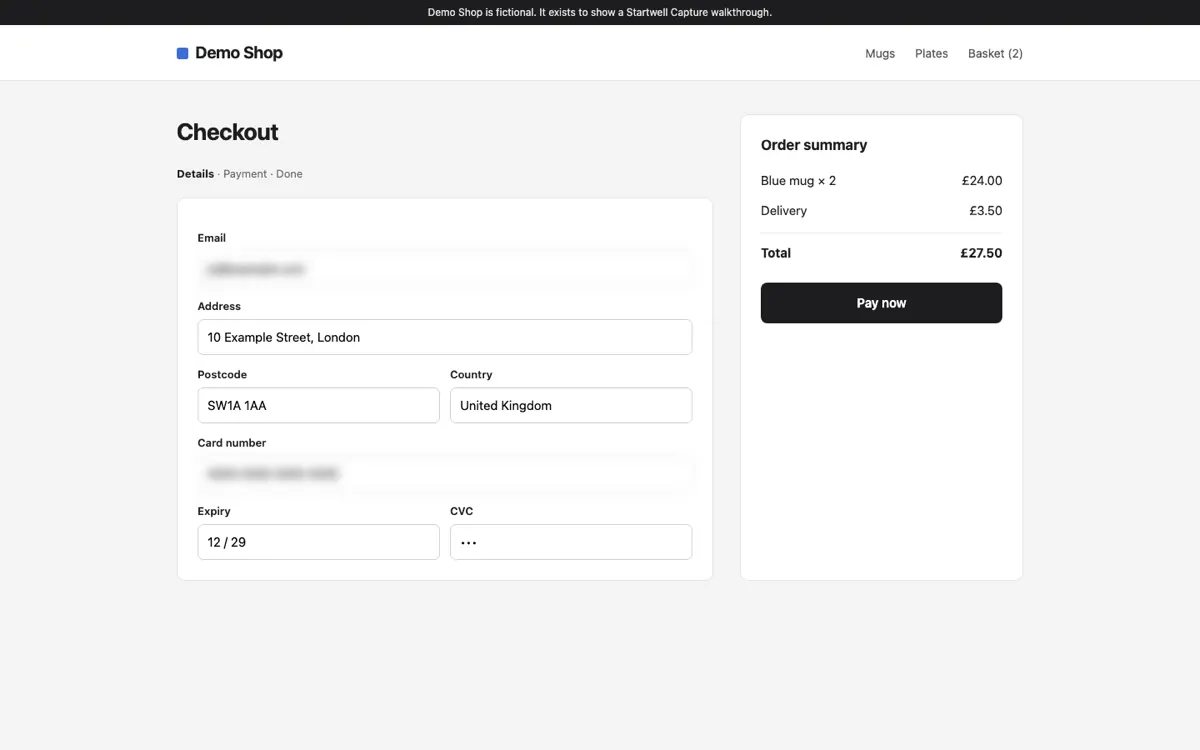
- Jo · 00:34I put in the test card, four two four two, and the expiry.
- 00:36 · Clicked into field "Card number"
- Jo · 00:44And pay now.
- 00:45Step 4screenshot · click (just before)
- 00:45 · Clicked button "Pay now"
- Jo · 00:49And it says my card was declined. That's the test card, so it shouldn't be.
- 00:51 · Navigated to demoshop.example/checkout/payment — "Payment failed — Demo Shop"
- Chapter · Payment failed — Demo Shop
- 00:52Step 5screenshot · page changed (after it settled)
- Jo · 00:59I think it's the postcode. It has a space in it. Without the space it goes through.
- 01:08 · Opened Slack — #checkout
- Jo · 01:10That's it. I'm sending this over.
A walkthrough of the fictional Demo Shop, replayed three times faster than it was recorded. Hover to pause, or pick a step. The same recording as a share page and as a pack to download.
How a walkthrough is made
Ten steps below, in four stages. Everything up to sharing happens on your computer. Keys are the macOS ones; on Windows and Linux ⌘⇧ is Win+Shift or Super+Shift, but a screenshot is Win+Alt+Shift+S or Super+Alt+Shift+S, and ⌥⌘⇧U is Win+Alt+Shift+U or Super+Alt+Shift+U.
It says what it records, first
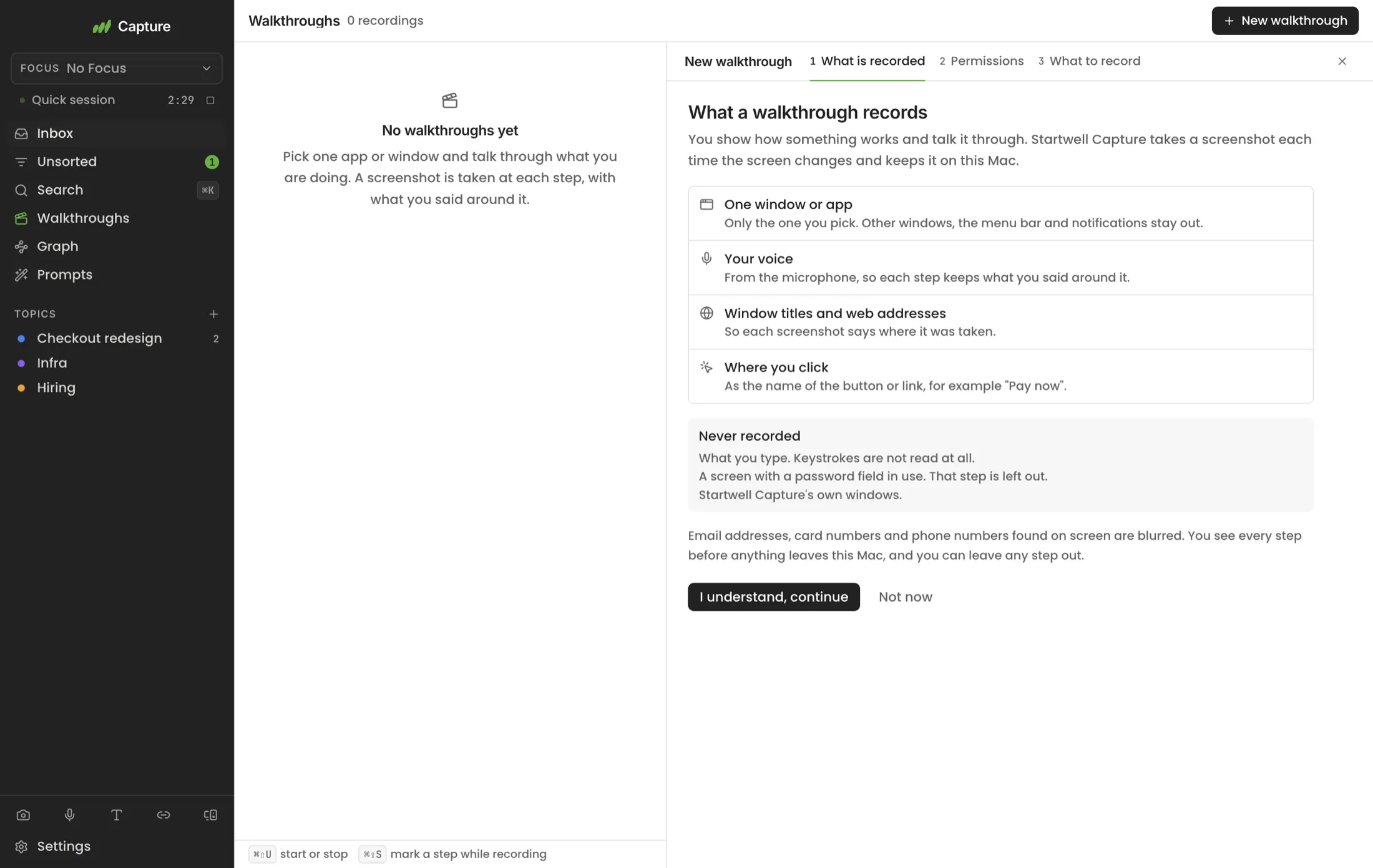
The first time you start one, a single screen sets out what a walkthrough keeps: the screen or window you pick, your voice, window titles and web addresses, and where you click, as the name of the button or link. It lists only what your computer can see: on Linux with Wayland, clicks in other apps can’t be seen.
And what it never keeps: what you type (keystrokes are not read at all), screens with a password field in use where the system can tell, and on macOS and Windows Startwell Capture’s small panels. Its main window is recorded if you show it.
On macOS, four permissions, checked live
- Screen Recording to see the screen or window you pick. Required. macOS applies it after a quit and reopen, so the button is right there.
- Microphone for your narration.
- Accessibility for window titles and the names of what you click.
- Automation to ask your browser which page it is on.
The list checks itself every two seconds, so it turns green as you switch each one on.
That is macOS. Windows asks for none of these; only the microphone has to be switched on for apps in its Settings. On Linux with Wayland, your desktop asks which screen to share the first time, and after that only if it can’t remember the choice.

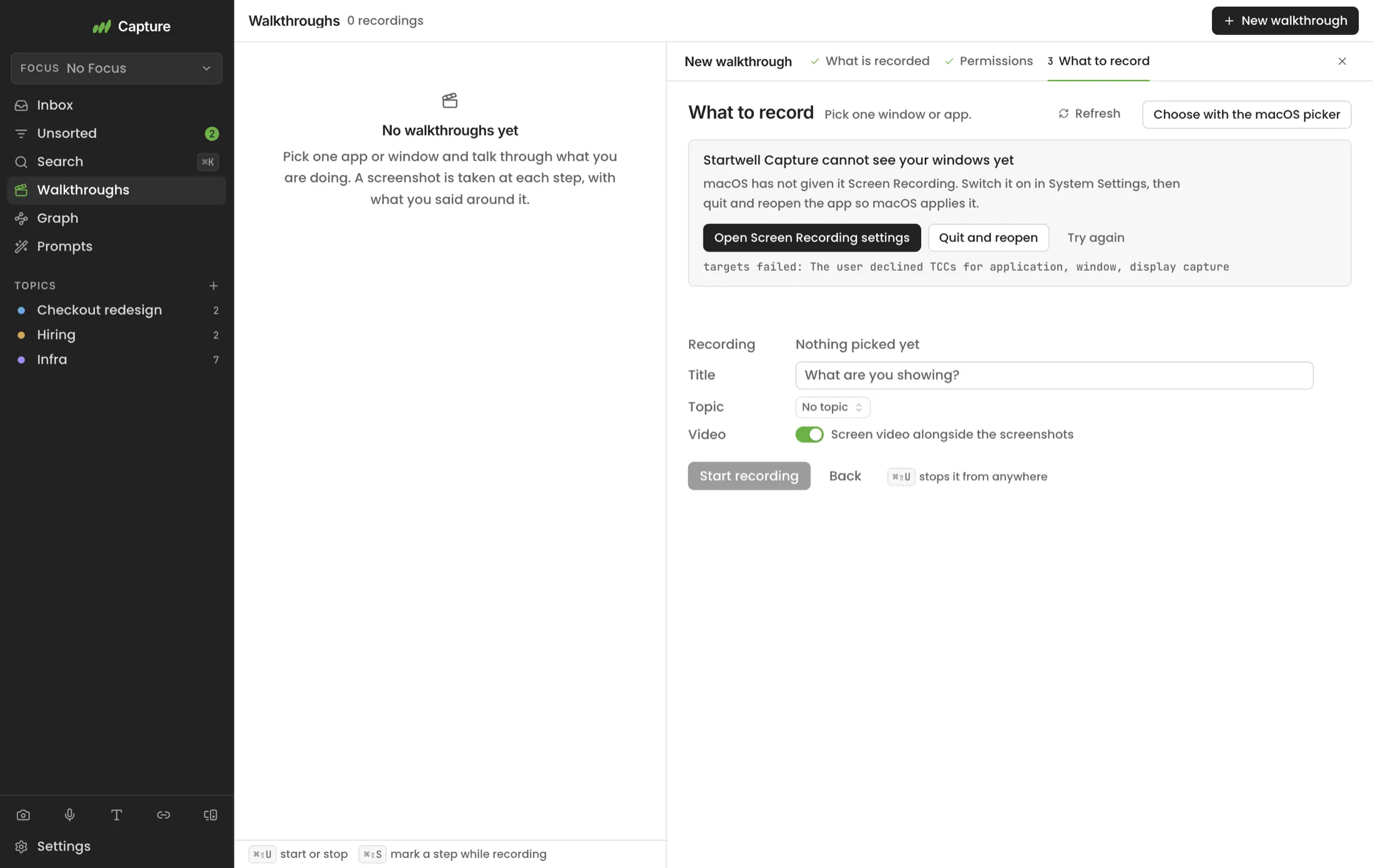
Pick what to record
The whole screen is chosen to start with. Or choose one window from the list (on macOS an app too, or the macOS picker), and only that window is captured: other windows, the menu bar or taskbar and notifications stay out. On Linux with Wayland, your desktop’s own dialog chooses what is shared.
Give it a title and a topic. Screen video is on by default alongside the screenshots, and can be turned off.
Record and talk
Use the app as you normally would and say what you are doing. A card at the top right of the screen shows that it is recording, the time and the number of steps. Pause it when you need to, and stop with ⌘⇧U.
Something worth a screenshot that the app would not notice? Press ⌘⇧S to mark a step by hand.
⌘⇧U    start from any app (⏎), and stop
⌘⇧S    mark a step now
⌥⌘⇧U   pause or resume

A small card stays at the top right:
Recording · 01:12 · 4 steps
[ Pause ] [ Mark step ] [ Stop ]Screenshots take themselves
The screen is sampled twice a second. A step is kept only when the screen has really changed, so a blinking cursor or a spinner does not make one.
The app keeps the last few frames, so it can save the screen as it was just before a click or a page change, as well as after. The “after” shot waits until the page stops moving, up to three seconds. A “before” frame is skipped when nothing changed since the last step.
Steps are at least two seconds apart and at most twenty a minute. Near-duplicates are dropped.
| A step is taken when | Which frame |
|---|---|
| You start recording | The first frame |
| The page address changes | Just before, and once it settles |
| You switch app or window | Just before, and once it settles |
| The window title changes | Just before, and once it settles |
| You click inside the window | Just before, and once it settles |
| Most of the screen changes | Once it settles |
| You press ⌘⇧S | That moment |
| You stop | The last frame, if it is new |
Every click and page becomes a line
While it records, the app notes what you do: which app and window, which page, and what you clicked, by its name. These lines are woven into the transcript in italics, so the words and the actions read in one order.
The README turns them into a numbered What I did list: repro steps written by the app, with no AI involved. Typed text is never recorded. Clipboard lines are off unless you turn them on.
_00:00 · Opened Google Chrome — "Your basket — Demo Shop" (demoshop.example/basket)_

**Jo** · 00:01
Okay, this is Demo Shop. I'm on the basket page with one blue mug.

_00:09 · Clicked menu "Quantity" in "Blue mug"_
_00:36 · Clicked into field "Card number"_
_00:45 · Clicked button "Pay now"_
_00:51 · Navigated to demoshop.example/checkout/payment — "Payment failed — Demo Shop"_
Private details are blurred
When you stop, the app reads the text in every screenshot on your computer and blurs what looks private:
- Email addresses
- Card numbers (ones that pass the card checksum)
- Phone numbers
A screenshot taken while a password field was in use is left out of the pack, where the system can tell. If a screenshot’s text can’t be read, it waits for you to approve it. You see all of this in review before anything leaves your computer.
Review every step
The check screen tells the recording stage by stage, with every click and screenshot between your words. Click a line to see its screenshot. Leave any screenshot out of the pack, or add a blur where you want one.
Steps you leave out stay on your computer and never reach the pack. Nothing is shared until you finish review.

- Check before you hand it on: topic, screenshots, blurs, voices.
- Clicks and screenshots sit between your words.
- Leave out a screenshot, or add a blur.
- Hand off, files or a share link, once it looks right.
A folder, a link or a zip
Finishing review writes the context pack and puts its path on your clipboard.
To share it with someone, upload it for a link. Anyone with the link can open the walkthrough in a browser: chapters, steps, the transcript and the video. Uploading needs an invite code from Startwell. Without one, export a zip instead.
Context pack
  ~/Startwell Capture/Demo Shop/2026-11-03 1402 Demo card declined at checkout/

  Share link (needs an invite code)
  https://capture.startwellventures.com/w/<id>

  Zip
  The same folder as one file, for email or chat.
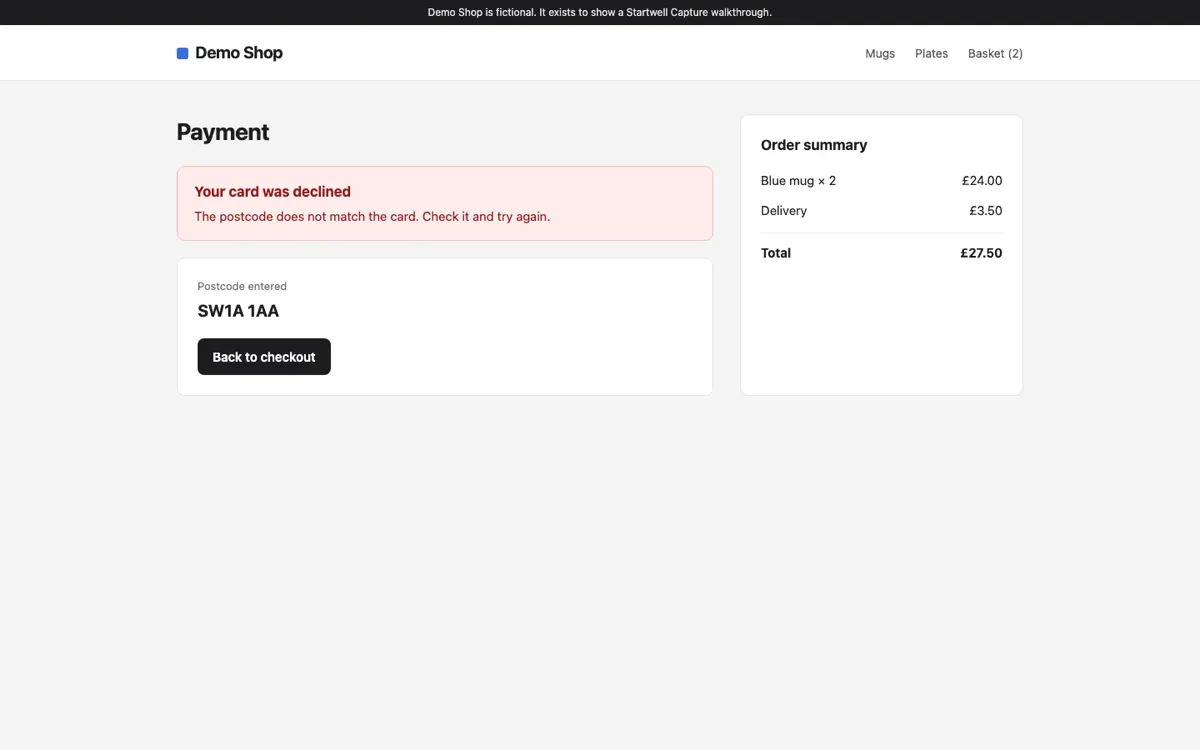
### Step 5 · 00:52 · Payment failed — Demo Shop  - **App:** Google Chrome - **Window:** Payment failed — Demo Shop - **URL:** https://demoshop.example/checkout/payment - **Captured:** page changed (after it settled) - **Said:** And it says my card was declined…
Hand it to Claude Code
The path is already on your clipboard. Paste it into Claude Code, or any agent that can read files, and ask. The README tells the agent what to open next.
Connected the topic to a project? The agent can also find the pack itself through agent access.
> Read ~/Startwell Capture/Demo Shop/2026-11-03 1402 Demo card declined at checkout/README.md
  and fix the bug it shows.

Reads README.md, then steps.md and the screenshots it links.
"What I did" gives it the repro steps; transcript.md gives it
why the tester thought it was the postcode.
Sending one to a tester?
There is a plain-language guide for people who have never used the app: what to install, what to click, and what is and is not recorded.